
InstallHub setup list
Best when you want to browse by purpose, compare alternatives and reopen the same selected list in the desktop app.
MULTIPLE APP INSTALLATION
A new PC rarely needs one program. The useful question is not simply how to install everything at once, but how to save a deliberate list, understand where each installer comes from and repeat the setup without collecting software you do not need.
QUICK ANSWER
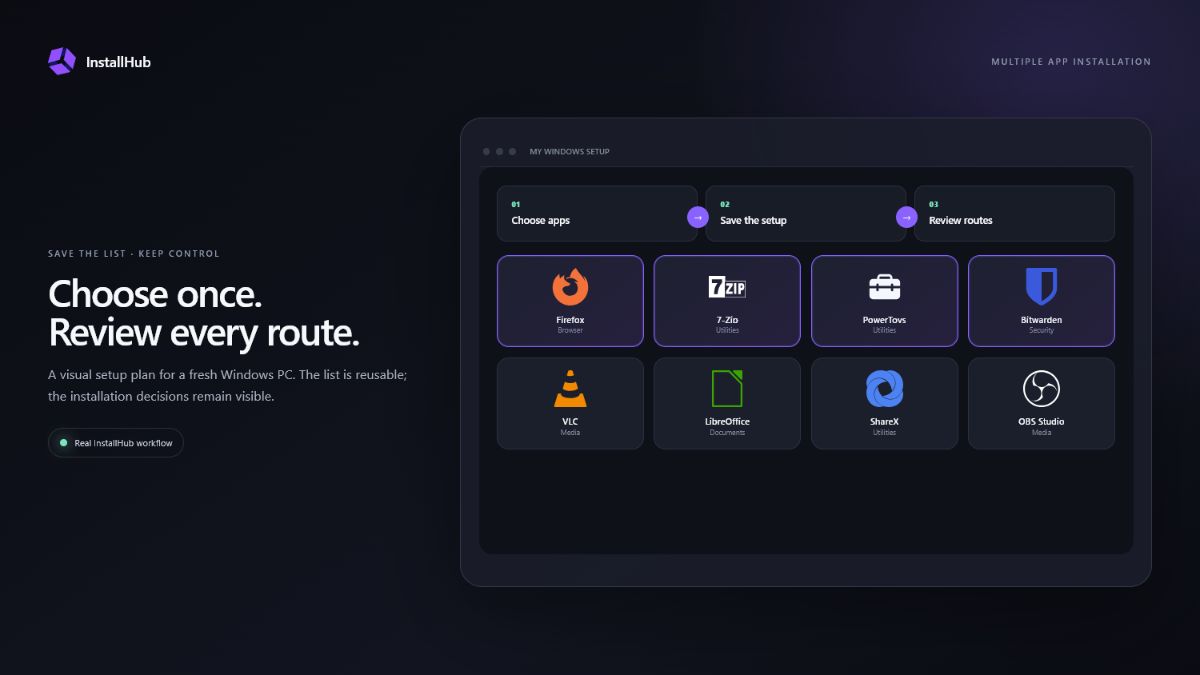
InstallHub is designed for discovery and a saved personal setup with visible routes. WinGet can import a package list and process supported packages serially. A curated service such as Ninite is convenient for a smaller fixed catalog. The strongest choice depends on whether you value breadth, automation or visible decisions.
CHOOSE THE WORKFLOW
Three decisions that shape this setup.Best when you want to browse by purpose, compare alternatives and reopen the same selected list in the desktop app.
Best when you already know exact package identifiers and want a repeatable command-line workflow.
Best when a short supported catalog contains every application you need and silent defaults are acceptable.
01
Finish Windows Update, restart the PC and confirm that networking, audio, graphics and storage work correctly. Installing a large software set before the base system is stable makes later faults harder to diagnose.
Choose one application for each immediate job: a browser, archive utility, document tool, password manager and media player. Add specialist software only when the machine actually needs it. This avoids competing startup services, duplicate file associations and unnecessary update agents.
02
Open Build my setup, select applications by category and save the list as an InstallHub setup file. The file records the selected application identifiers; it does not contain third-party installers or silently change Windows.
After InstallHub opens the list, review each application card and its route. A supported WinGet entry can start the exact package. A publisher-controlled download opens the official website route so you can choose the edition offered there. Windows prompts and publisher installers remain visible.
03
Microsoft documents WinGet import as a way to install the applications listed in a JSON file. It processes the packages serially and reports packages that are unavailable or already installed. This is useful for a developer image or technician workflow where the package identifiers are already verified.
Automation does not remove the need to review the source, package identity and elevation requirements. Some installers still require interaction, and software that is not present in the configured source needs a different route.
WinGet is powerful after the list is known. A visual catalog is more useful while the list is still being decided.
04
Install essentials first, launch them once and confirm file associations and sign-in. Then add creative, developer or gaming applications in a second pass. If something causes a conflict, the smaller change set makes the cause easier to identify.
Keep the saved setup list as a record, but review it before using it on another PC. Hardware, licences and work requirements change; a reusable list should be a starting point rather than an instruction to install everything forever.
OFFICIAL REFERENCES
COMMON QUESTIONS
Yes. WinGet can import a JSON package list, while visual tools can help you prepare or reuse a selection. The amount of interaction depends on each installer and the workflow you choose.
No. A saved setup list reopens your choices. You start the installation route for each application and keep normal Windows or publisher prompts visible.
WinGet is delivered through Microsoft App Installer on supported Windows systems. If the command is unavailable, repair or update App Installer before relying on a package workflow.
No. Install only software that serves a current task. A smaller setup is easier to understand, maintain and troubleshoot.
INSTALLHUB FOR WINDOWS
Choose the applications you prefer. InstallHub shows the route and leaves installation decisions under your control.
Download InstallHub