

7-Zip is a free, open-source archive tool by Igor Pavlov. Use it to unpack downloaded files, combine a folder into a ZIP, or create an encrypted 7z archive.
The format matters as much as the application. A ZIP made for sharing and a password-protected 7z made for private storage solve different problems. This guide explains the Windows download choices and the settings worth checking before you send a file.
START WITH THE PUBLISHER
Which 7-Zip download should you choose?
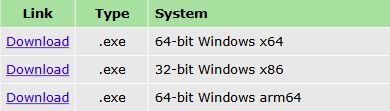
Open the Official Windows downloads and use the current release section. Choose x64 for a Windows x64 PC, ARM64 for an ARM-based Windows PC, or x86 for a 32-bit Windows installation. Check your PC's system type if you are unsure; “64-bit” alone does not distinguish x64 from ARM64.
The publisher recommends the EXE installer rather than the alternative MSI. Follow links from the official page: some current downloads are hosted in the publisher's GitHub releases. There is no need to download from an unrelated mirror.
Extract ZIP, 7z or RAR files into a folder
- Open the archive in 7-Zip File Manager. Check its contents before unpacking an unfamiliar download.
- Select Extract and choose a destination. A new folder keeps the extracted files separate from the rest of your Downloads folder.
- Check the result before deleting the archive. Open the files you expected and keep the original download until you know it is complete.
Using the Extract command lets you select the output location directly. Dragging files from 7-Zip into File Explorer uses a temporary folder first, as explained in the Publisher FAQ. If the 7-Zip shell commands are missing from the first Windows 11 right-click menu, check Show more options; see Microsoft File Explorer guidance.
Extraction is not a safety check
An archive can contain executable files. Only run software from a source you trust; opening an archive does not establish that its contents are safe.
ZIP or 7z: choose for the recipient
| Format | When to choose it | What to check |
|---|---|---|
| ZIP | Sharing a folder when broad compatibility is the priority. | Confirm the recipient's software can open any encryption method you apply. |
| 7z | Using 7-Zip's native format, including its compression and encryption options. | Confirm the recipient has software that supports 7z. |
The 7z format and encryption documents LZMA/LZMA2 compression and AES-256 encryption. Actual size reduction depends on the files and settings: already-compressed photos or videos may shrink very little. Do not pick maximum compression simply because it sounds better.
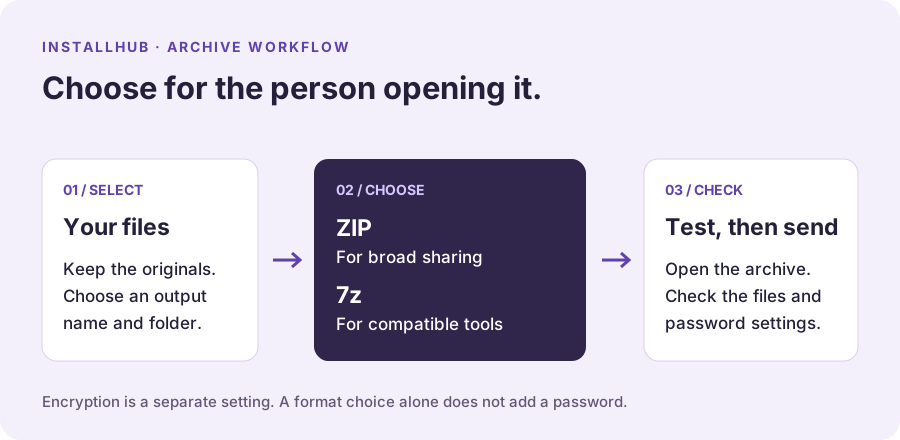
Create a password-protected 7z archive
- Select your files and open Add to Archive. Choose an output name and location you can find again.
- Set the archive format to 7z. In the encryption settings, enter and confirm a strong, unique password and check the encryption method.
- Enable Encrypt file names if needed. For a 7z archive, this protects the file list as well as the contents. Do not assume a password automatically hides file names.
- Test your finished archive. Close it, reopen it and confirm that the password is required and that the expected files can be extracted.
The settings are documented in the publisher's Publisher archive-dialog source and 7z format and encryption. Keep the password securely and share it through a separate channel from the archive. Encryption does not replace a backup: keep another copy of important originals.
Install with InstallHub or WinGet
InstallHub's existing 7-Zip catalog entry uses the exact Windows Package Manager ID 7zip.7zip. You start the installation and review the normal installer and Windows elevation prompts. The website download button above goes directly to the publisher instead.
If you prefer Windows Terminal and already have WinGet, this optional command requests the matching package from the WinGet source with an interactive installer:
winget install --id 7zip.7zip --exact --source winget --interactiveReview what WinGet resolves before approving installation. Its available package may not match a newly published release immediately. See Microsoft WinGet install documentation for the options and requirements.
QUICK ANSWERS
Common 7-Zip questions
Is 7-Zip free for commercial use?
Yes. The publisher permits personal and commercial use without payment or registration. Most code uses the GNU LGPL; some parts have other terms. If you redistribute or modify it, read the 7-Zip licence.
Can 7-Zip create RAR files?
No. RAR is supported for extraction, not archive creation. Choose ZIP or 7z when making an archive in 7-Zip. See Supported archive formats.
What if extraction reports a CRC or data error?
Do not assume the extracted files are complete. Check that the download finished, obtain all parts of a multipart archive, and try a fresh copy from the original source. The Publisher FAQ has troubleshooting guidance; recovery is not guaranteed.
Does choosing ZIP encrypt my files?
No. The archive format and encryption settings are separate choices. Apply the intended password and method, then check that your recipient can open the result.
Sources and editorial scope
This is an independently researched Windows guide, not a hands-on benchmark. Facts were checked against publisher and Microsoft documentation on 11 October 2026. The download image is a real website capture; the workflow diagram is an original illustration. Interfaces and release versions can change.
- Official Windows downloads
- Supported archive formats
- 7z format and encryption
- Publisher FAQ
- 7-Zip licence
- Publisher archive-dialog source
- Microsoft WinGet install documentation
- Microsoft File Explorer guidance
InstallHub is an independent catalog, not the publisher of 7-Zip. Product names and trademarks belong to their owners.