Foundation
Terminal, shell and source control used across projects.
DEVELOPER PC SETUP
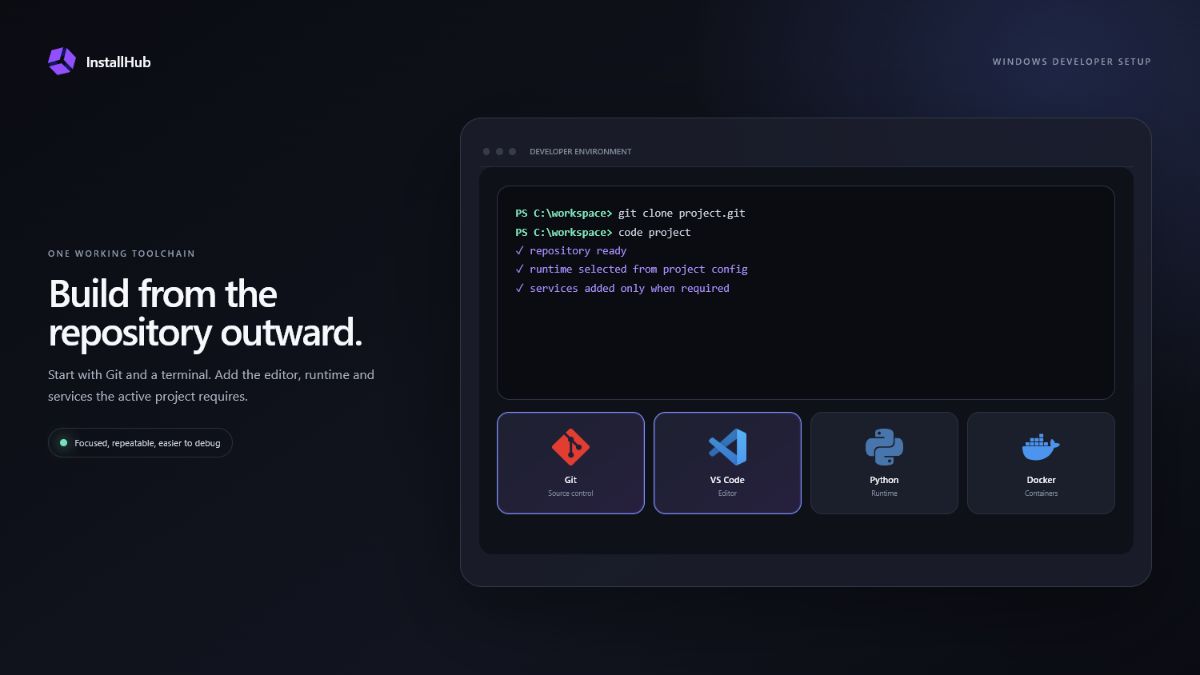
A developer PC does not need every runtime and IDE. Start with source control and a terminal, then add the editor, language, container and database tools required by the first project. This keeps PATH changes, services and extensions understandable.
QUICK ANSWER
Git, Windows Terminal and PowerShell form a useful base. Choose Visual Studio Code or a specialist IDE, add only the runtime versions you need, and decide whether containers, virtual machines or WSL belong in the workflow.
ASSEMBLE THE TOOLKIT
Three decisions that shape this setup.Terminal, shell and source control used across projects.
Editor or IDE plus the language runtime required by the repository.
Containers, databases and API tools added only when the project needs them.
01
Install Git for Windows, choose a credential approach and set the name and email used for commits. Windows Terminal provides tabs and profiles for PowerShell, Command Prompt and supported WSL environments. PowerShell 7 is useful when scripts depend on the current cross-platform shell rather than the Windows-included version.
Launch each tool once and confirm it is available from a new terminal session before adding the rest of the stack. This catches PATH and permission problems while the environment is still small.
02
Visual Studio Code is a flexible general editor, Visual Studio targets full Microsoft development workloads, and JetBrains products provide specialised IDEs for particular languages. Install the one used by the project or team rather than several large IDEs by default.
Add extensions conservatively. Every formatter, language server and code assistant can affect project behavior. Prefer repository configuration so a new machine can reproduce the same formatting and linting rules.
03
A web project may require Node.js, a data workflow may require Python, and another repository may use Java, Go or Rust. Confirm the version from project documentation or version files before installing the latest runtime globally.
When several projects require different versions, use the ecosystem’s supported version-management approach. Keep the global machine setup small and store project dependencies in the project, not as undocumented system-wide additions.
04
Docker Desktop, Podman Desktop, WSL and virtual machines solve different isolation needs. Choose one based on the repository and hardware rather than installing every option. Database administration clients and API tools should follow the same rule.
Microsoft documents WSL as a development environment that can combine Linux tools with Windows Terminal, editors, Git and databases. Review storage location, resource use and team compatibility before moving a repository between Windows and Linux filesystems.
OFFICIAL REFERENCES
COMMON QUESTIONS
Start with Git, a terminal and the editor used by your active repository. Add its runtime and services only after the foundation works.
Not necessarily. They serve different workloads. Install both only when your projects actually depend on both environments.
No. Use the environment documented by the project or team. Containers and WSL add capabilities, but also storage, networking and resource considerations.
Yes. Build an InstallHub list for visual reuse, or use WinGet export and import when every required tool has a suitable package identifier. Review versions before repeating it.
INSTALLHUB FOR WINDOWS
Choose the applications you prefer. InstallHub shows the route and leaves installation decisions under your control.
Download InstallHub