

On this page
What is WinGet?Which command do you need?Step 1: See what needs updatingStep 2: Update everythingStep 3: Include apps with unknown versionsUpdate without promptsKeep an app on its current versionUpdate just one appIf something goes wrongPrefer not to use the command line?FAQwinget upgradelists available updates without changing anything.winget upgrade --allupdates every app WinGet can track — add--include-unknownto catch the rest.- Keep one app on its current version with
winget pin add.
What is WinGet?
WinGet is the Windows Package Manager, Microsoft's official tool for installing and updating software from the command line. It's part of the App Installer that comes with Windows 10 and 11, and its public catalog lists thousands of apps — most of them downloaded straight from the publisher.
You don't need to have installed an app with WinGet for it to update it. WinGet recognises many programs you installed the normal way, from browsers to 7-Zip and VLC.
Which command do you need?
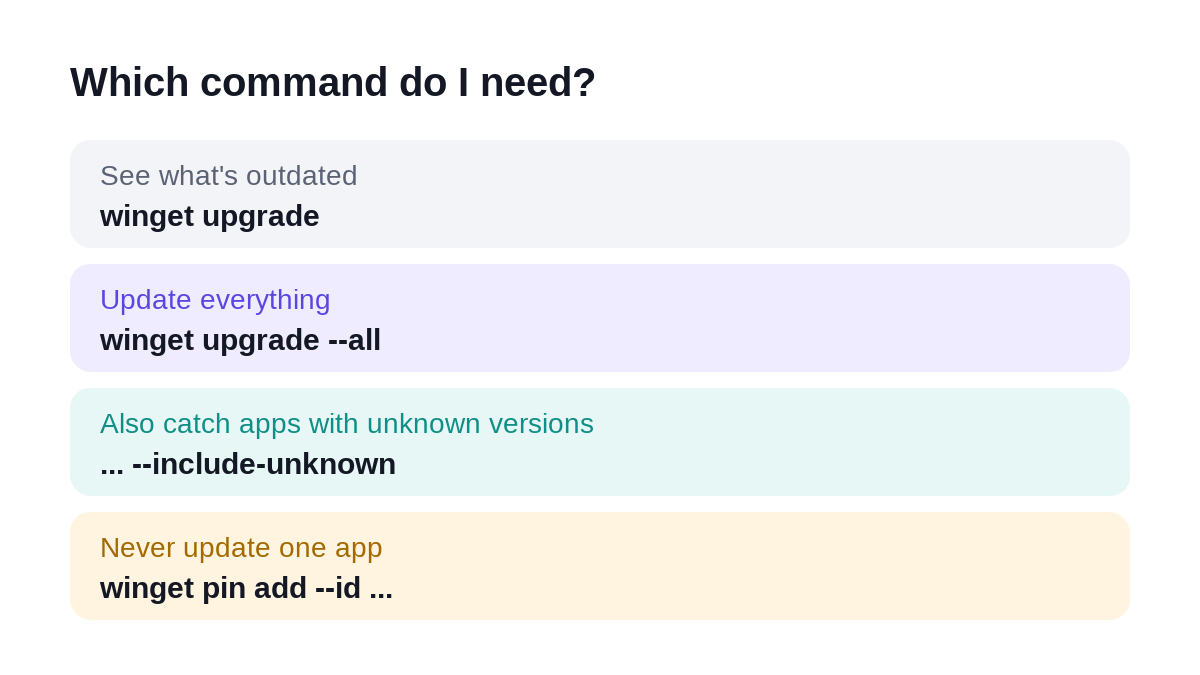
Open Windows Terminal (right-click Start → Terminal). Use a normal window first; only switch to Terminal (Admin) if an update fails because it needs administrator rights.
Step 1: See what needs updating
winget upgrade
This only lists apps with an update available — it changes nothing. You'll see the app name, its ID, your version and the available version. Read through the list before going further.
Step 2: Update everything
winget upgrade --all
WinGet downloads each new version and runs its installer. Some installers show a window or a User Account Control prompt — that's normal. Close the apps being updated first, especially browsers, to avoid “file in use” errors. A typical PC with 10–15 outdated apps takes a few minutes.
Step 3: Include apps with unknown versions
Some apps don't tell Windows which version is installed, so WinGet skips them by default. Add --include-unknown to update them too:
winget upgrade --all --include-unknown
This catches more outdated software. Occasionally it reinstalls an app that was already current, which is harmless.
Update without prompts
To run the whole thing unattended — for example on a family member's PC — add the silent and agreement options:
winget upgrade --all --include-unknown --silent --accept-package-agreements --accept-source-agreements
--silent asks installers to run without windows where they support it, and the two --accept options answer licence prompts for you. Only use them when you trust the list of apps you just reviewed.Keep an app on its current version
Sometimes you don't want an app updated — a tool your work depends on, or a game launcher during a tournament. Pin it:
winget pin add --id Microsoft.PowerToys
winget pin list
winget pin remove --id Microsoft.PowerToys
A pinned app is skipped by winget upgrade --all. Use the exact ID from the winget upgrade list. A blocking pin (--blocking) also stops single-app updates until you remove it.
Update just one app
winget upgrade --id VideoLAN.VLC
Using --id avoids confusion when several apps have similar names.
If something goes wrong
| Problem | Fix |
|---|---|
| “winget is not recognized” | Update App Installer from the Microsoft Store, then open a new terminal. |
| An update fails or hangs | Close the app, run the command again, or try once from Terminal (Admin). |
| An app keeps showing an update | It may be installed twice or report its version differently. Check Settings → Apps → Installed apps. |
| Source agreement prompt | The first run asks you to accept the catalog terms — type Y. |
Microsoft Store apps usually update themselves through the Store. If one appears in the list with the msstore source, you can update it there or from WinGet.
Prefer not to use the command line?
WinGet is the fastest way to keep apps current, but it's text-only. When you're setting up a new PC and want to choose apps visually, InstallHub lets you pick from a catalog and starts each installer through WinGet or the publisher's site. For graphical package managers, see WinGet alternatives.
Apps mentioned
 Windows Terminal
 PowerShell 7
 Microsoft PowerToys
 VLC Media Player
Frequently asked questions
What is the command to update all apps on Windows?
winget upgrade --all. Add --include-unknown to include apps whose version WinGet can't detect.
Does winget upgrade without options install anything?
No. It only lists the apps that have updates available.
How do I stop WinGet updating one app?
Pin it with winget pin add --id <PackageId>; pinned apps are skipped by winget upgrade --all.
Do I need to run WinGet as administrator?
Usually not. Use Terminal (Admin) only if a specific update fails for lack of permissions.


