

On this page
How much space can each step free?1. Find what's using the space2. Cleanup recommendations and Temporary files3. Turn on Storage Sense4. Remove the previous Windows installation5. Uninstall apps and games you don't use6. Keep OneDrive files online-only7. Use Disk Cleanup for system files8. Advanced: turn off hibernationWhat never to deleteFAQ- Start in Settings → System → Storage: Cleanup recommendations and Temporary files are the safest wins.
- The biggest gains usually come from
Windows.old, unused games and the hibernation file. - Never delete files inside
C:\Windowsby hand, and skip “PC booster” apps.
How much space can each step free?
Typical figures — your PC will differ, but this shows where to look first:
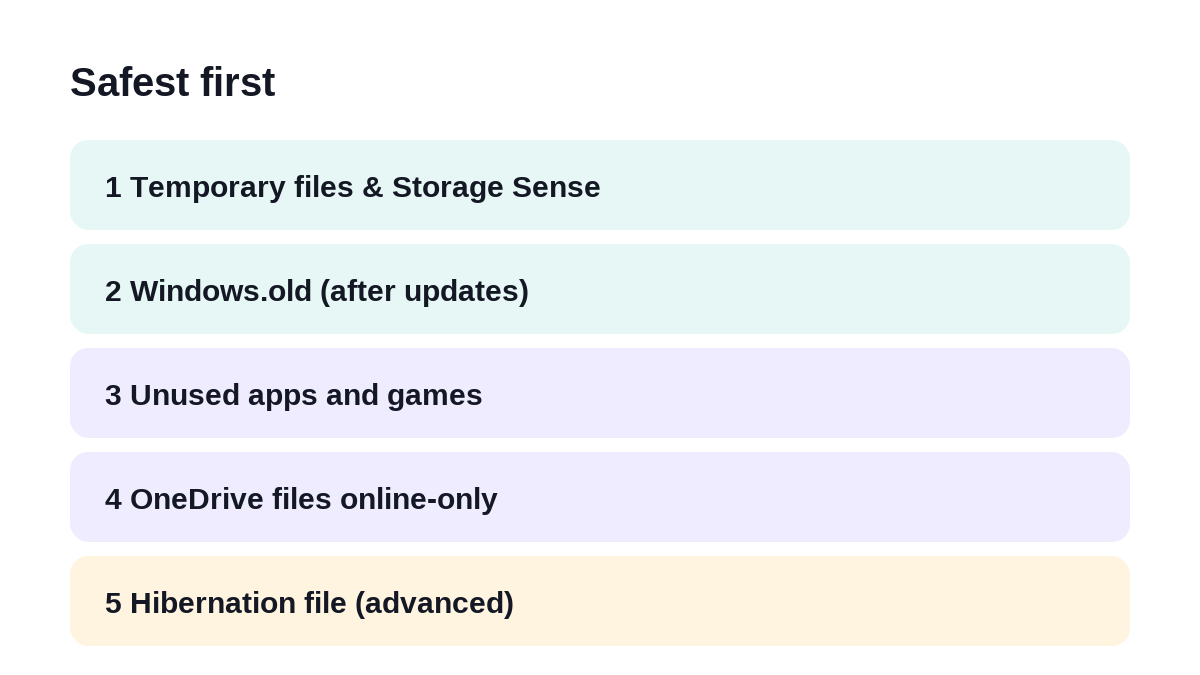
| Step | Typical gain | Risk |
|---|---|---|
| Temporary files & Recycle Bin | 1–10 GB | Very low |
| Previous Windows installation (Windows.old) | 10–30 GB | Low — no rollback afterwards |
| Unused games and apps | 5–150 GB | Low |
| OneDrive files online-only | Depends on your files | Low — needs internet to open |
| Hibernation file | Several GB | Medium — disables hibernate |
1. Find what's using the space
Open Settings → System → Storage. Windows shows how your drive is split between apps, temporary files, documents and other categories; click one to see details.
For a precise map, a free disk analyser such as TreeSize Free or WinDirStat shows every folder by size. The culprit is often an old video export, a forgotten game or years of downloads.
2. Cleanup recommendations and Temporary files
In Settings → System → Storage, open Cleanup recommendations. Windows lists large or unused files, files already synced to the cloud and apps you haven't opened in a while. Review each list before deleting.
Then open Temporary files. Delivery Optimization files, thumbnails and temporary internet files are safe to remove. Watch the Downloads checkbox — it deletes your whole Downloads folder.
3. Turn on Storage Sense
Storage Sense cleans up automatically: it empties the Recycle Bin, removes temporary files and can clear old downloads on a schedule. Turn it on in Settings → System → Storage → Storage Sense. With the default settings it runs when space gets low.
4. Remove the previous Windows installation
After a major update, Windows keeps your previous version in C:\Windows.old so you can roll back. Windows deletes it automatically 10 days after the upgrade, but you can remove it sooner if the new version works well: it appears under Temporary files as Previous Windows installation(s).
After removing it you can't go back to the previous version, so only do this once you're happy with the update.
5. Uninstall apps and games you don't use
Games are usually the biggest single items. Open Settings → Apps → Installed apps, sort by size and uninstall what you no longer use. Game launchers such as Steam can move games to another drive instead of deleting them.
For programs that leave folders behind, an uninstaller like Revo Uninstaller removes the leftovers too.
6. Keep OneDrive files online-only
If you use OneDrive, Files On-Demand keeps files in the cloud and downloads them only when you open them. Right-click a large OneDrive folder and choose Free up space. On Windows 11, Storage Sense can also make cloud files you haven't opened for 30 days online-only.
7. Use Disk Cleanup for system files
The classic Disk Cleanup tool still works and can remove Windows Update leftovers: search for Disk Cleanup, choose drive C:, then select Clean up system files. Tick Windows Update Cleanup and Temporary files, then click OK.
8. Advanced: turn off hibernation
hiberfil.sys lets Windows hibernate and powers Fast Startup. It can take several gigabytes. If you never hibernate, turn it off from Terminal (Admin):powercfg /h off
This also disables Fast Startup. Turn it back on with powercfg /h on. On laptops, hibernation saves your work when the battery runs out — think twice before disabling it.
What never to delete
- Anything inside
C:\Windows— especiallyWinSxS,System32andInstaller pagefile.sysandswapfile.sys— Windows manages them- Program folders of installed apps — uninstall them properly instead
- Anything a “registry cleaner” or “PC booster” suggests that you don't understand
To safely shrink Windows' component store, use its own tool from Terminal (Admin): DISM /Online /Cleanup-Image /StartComponentCleanup.
Apps mentioned
 TreeSize Free
 WinDirStat
 Revo Uninstaller
 OneDrive
Frequently asked questions
What is the safest way to free up space on Windows 11?
Settings → System → Storage: use Cleanup recommendations, Temporary files and Storage Sense.
Can I delete the Windows.old folder?
Yes, once you're happy with the update. Windows removes it after 10 days anyway, and you can't roll back afterwards.
Is it safe to delete files in WinSxS?
No. Never delete them by hand; use the built-in DISM component cleanup instead.
Do I need a PC cleaner app?
No. Windows' own tools plus a free disk analyser cover what most people need.


