
Files changed or deleted
Use version history or a versioned file backup with a retention policy you understand.
BACKUP AND RECOVERY
Sync, backup, disk imaging, boot media and file recovery are often placed in one category even though they answer different problems. A useful plan begins with the data, downtime and failure scenario, then selects the appropriate tool.
QUICK ANSWER
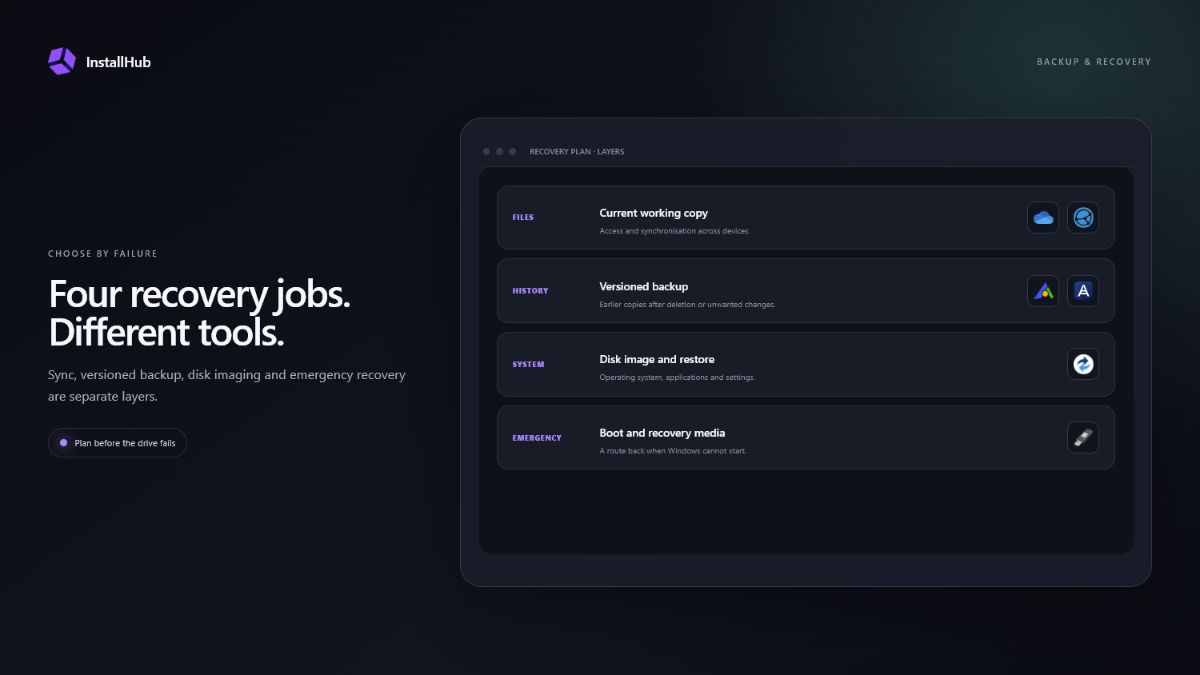
Cloud sync helps keep current files available across devices, but deletions can also synchronise. Versioned backup keeps earlier copies. Disk images target full-system recovery. Boot and data-recovery tools are last-resort workflows, not substitutes for a backup made before failure.
SEPARATE THE LAYERS
Three decisions that shape this setup.Use version history or a versioned file backup with a retention policy you understand.
Use a tested system image or recovery path that can restore to suitable storage.
Stop writing to the affected disk and evaluate data recovery before further damage.
01
OneDrive, Google Drive, Dropbox and similar tools keep selected files available across devices. They are useful for access and collaboration, but their deletion and version-history behavior must be understood. Syncing one copy to another location is not automatically a complete backup policy.
Backup software can keep scheduled versions of files, folders, partitions or a full system. Disk imaging is valuable when restoring the operating system, applications and settings matters more than rebuilding them manually.
02
AOMEI Backupper, Acronis Cyber Protect Home Office and Macrium Reflect provide different combinations of file backup, imaging, cloning and recovery features. Compare edition limits, scheduling, encryption, boot-media support and restore options on the publisher’s current product page.
InstallHub labels partner applications. That label identifies a commercial relationship; it does not mean the paid edition is required. Use the publisher’s free or trial option when available and appropriate, and confirm current terms before purchasing.
03
A recovery image stored on an external disk is not enough if the computer cannot boot and you have no way to launch the restore environment. Create recovery media using the backup product or a suitable boot-media tool, label it and keep any encryption or account recovery information separately.
Rufus and Ventoy help prepare bootable USB workflows, while specialist recovery products target different repair or data-loss scenarios. Always verify the target disk before writing an image because these operations can destroy existing data.
04
Open sample files from the backup, inspect available versions and document how to reach the recovery environment. For important systems, test restoration to spare storage or a controlled environment rather than discovering missing credentials during an emergency.
Microsoft Windows Backup can protect supported files, settings and app information associated with a Microsoft account. Review what it covers and add another method for anything outside that scope or for recovery objectives it does not meet.
OFFICIAL REFERENCES
COMMON QUESTIONS
No. Sync is useful for availability and collaboration, but changes or deletions may propagate. Check version history and keep an independent recovery copy for important data.
It depends on downtime and complexity. A system image is valuable when rebuilding applications and settings would take longer than restoring a tested image.
No. Recovery depends on the type of failure, later disk writes, encryption and physical condition. Stop using a failed drive and seek specialist help when the data is irreplaceable.
Because a failed Windows installation may not be able to launch the recovery software stored on the same system. Prepared media gives you another way to start the repair or restore process.
INSTALLHUB FOR WINDOWS
Choose the applications you prefer. InstallHub shows the route and leaves installation decisions under your control.
Download InstallHub