

Is Google Chrome a good fit for your PC?
Chrome works well when you want a browser that feels familiar from the first launch. You can open a website, sign in to an account, watch a video or work in an online document without spending much time setting things up.
Its more useful features become apparent when your browsing gets busy. You can keep work and personal logins separate, collect related tabs into groups and choose whether to bring your bookmarks and passwords across devices. None of that requires a paid edition, and a Google account is optional.
The reasons not to choose Chrome are worth discussing too. It can use considerable memory with heavy websites and many extensions, and some of its optional features involve sharing more information with Google. Those are choices you can review rather than accepting blindly.
ORGANISING YOUR BROWSING
Tabs get messy. Tab Groups help.
Once you have more than a few websites open, it becomes easy to lose the page you actually need. Chrome's Tab Groups let you give related tabs a name and colour, then collapse or expand the group when you want to focus.
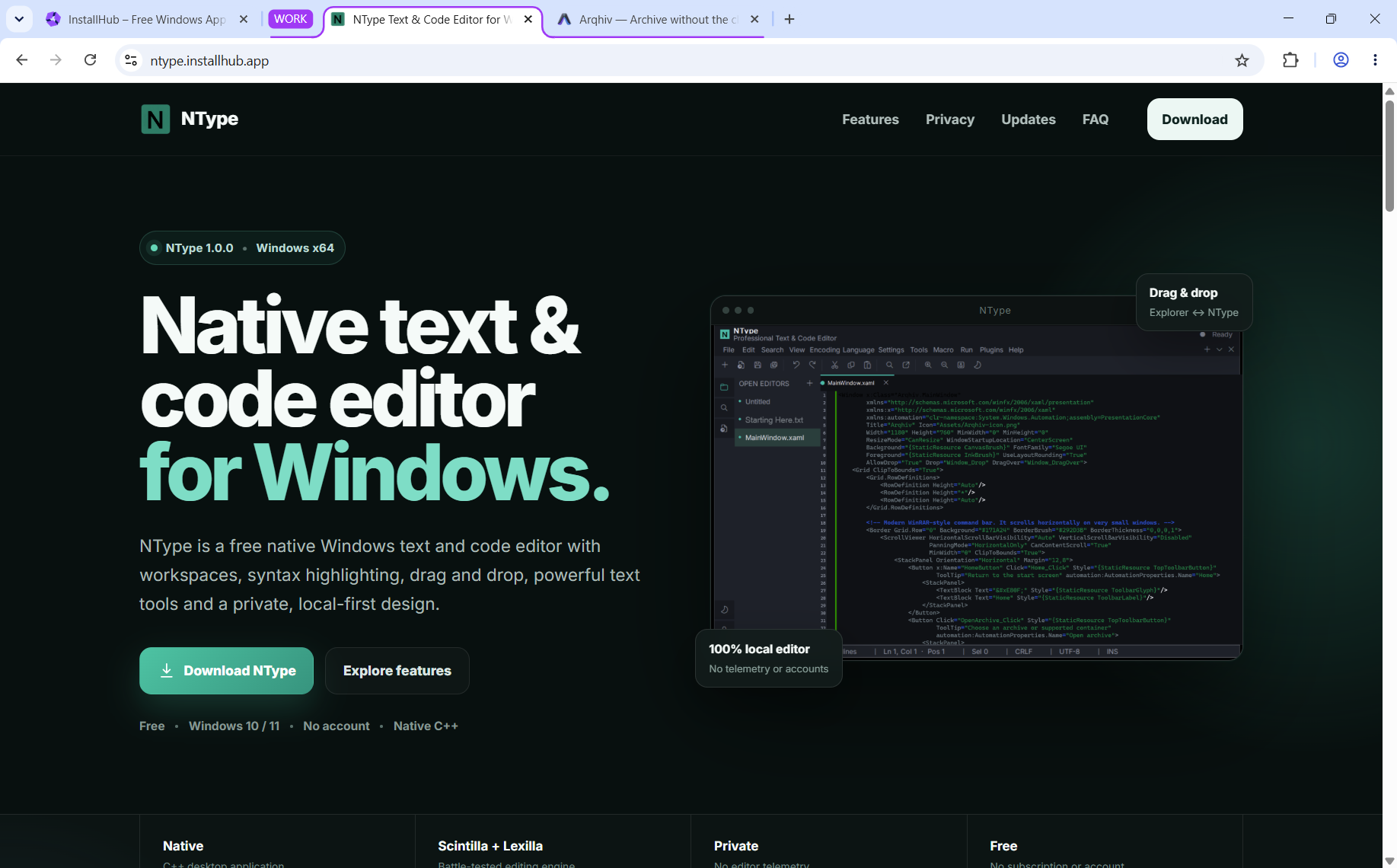
The screenshot below shows a real purple WORK group, with NType and Arqhiv open alongside the InstallHub tab. It was captured in Chrome on Windows, rather than recreated as an illustration.
Try it yourself
Right-click a tab, choose Add tab to group, then create a new group. Give it a short name such as Work or Research and choose a colour. Drag additional tabs into it as your project grows. You can collapse the group by selecting its label.
This is particularly useful when comparing products, researching a topic or switching between several web applications during the day.
ACCOUNTS AND EXTENSIONS
One browser, different routines
Keep personal and work accounts separate
Chrome profiles can have their own bookmarks, browsing history and settings. If you use one account for work and another for personal email, profiles make it easier to avoid opening the wrong one. They are convenient for organisation, although they should not be treated as a substitute for separate Windows user accounts on a shared computer.
Sync only what you want
You can browse without signing in to Google. If you do choose to sign in, Chrome offers settings for accessing supported browsing information, such as bookmarks and passwords, on your other devices. Check which information you have chosen to share.
Extensions are useful, but check the permissions
Extensions can add tools for writing, passwords, accessibility and web development. Before installing one, check who made it and what it can access. Remove extensions you have stopped using, especially those with broad access to websites.
PERFORMANCE ON WINDOWS
What about memory use and battery life?
Chrome can feel quick while still using a fair amount of RAM. A demanding website, dozens of open tabs or a long list of extensions can make a difference, particularly on an older laptop.
Open Settings > Performance to find Memory Saver, which can free resources from inactive tabs and reload them when you return. Supported laptops may also offer Energy Saver to reduce power use. These features help manage resources, but they are not a promise that Chrome will outperform other browsers on your machine.
If a website needs to stay active in the background, such as a dashboard you monitor during work, review Memory Saver's option to keep selected sites active.
PRIVACY AND PROTECTION
Security settings worth checking once
Chrome updates automatically and includes Google's Safe Browsing warnings for known dangerous websites, downloads and extensions. It is still important to pay attention to unexpected prompts and unfamiliar downloads: no browser can make every website trustworthy.
Standard protection or Enhanced protection?
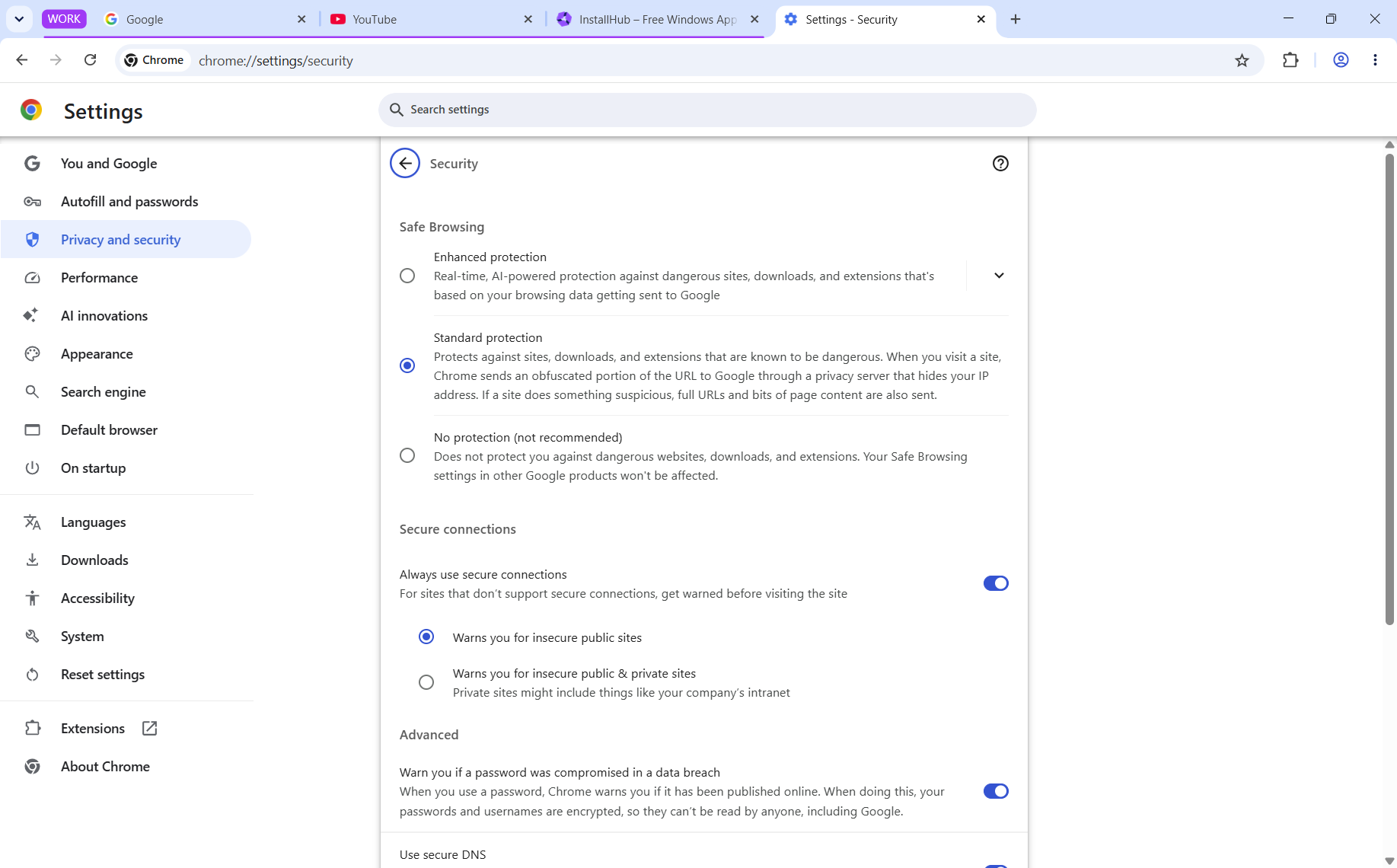
Open chrome://settings/security or visit Settings > Privacy and security > Security. Standard protection warns about known dangerous websites and downloads. Enhanced protection offers additional checks against emerging threats, but sends more browsing-related information to Google. It is worth reading that explanation before you change the option.
Turning Safe Browsing off removes important warnings and is generally a poor trade-off. Also review Site settings for access to your camera, microphone, location and notifications.
Incognito limits the browsing information Chrome retains on your device when you close the session. Websites, your workplace or school network, and your internet provider may still be able to observe activity.
INSTALLING THE APPLICATION
How to install Google Chrome on Windows
You have two straightforward options: download Chrome from Google's official website, or use Windows Package Manager through an application such as InstallHub. InstallHub lists the exact package ID Google.Chrome; it does not create a modified Chrome installer.
- Open InstallHub on your Windows PC and search for Google Chrome.
- Check the publisher and the package identifier
Google.Chrome. - Start the installation and review any Windows or publisher prompts that appear.
- After installation, open Chrome. To make it your default, visit Windows Settings > Apps > Default apps.
If you prefer Windows Terminal and already have winget available, you can request the package directly:
winget install --id Google.Chrome --exactThe InstallHub download button installs InstallHub itself. It does not download Chrome directly from this webpage, and no paid or trial edition of Chrome needs to be selected.
CHOOSING A DEFAULT BROWSER
Should you consider an alternative?
Chrome is a sensible choice if you depend on Google services or want a familiar browser with extensive extension support. Mozilla Firefox is worth exploring if you want a browser with a different engine and its own privacy controls. Brave puts more emphasis on blocking ads and trackers out of the box.
You can install several browsers and keep your current default while trying another. Our Windows browsers category makes it easier to compare the options.
COMMON QUESTIONS
Google Chrome FAQs
Is Google Chrome free on Windows?
Yes. The browser is free to download and use. Optional third-party services or extensions may charge for their own features.
Do I need a Google account to use Chrome?
No. Sign-in is optional. You can browse without a Google account and choose later whether to use cross-device features.
Does Chrome replace Microsoft Edge?
No. Chrome and Edge can both remain installed. You can choose a default browser in Windows Settings and change it later.
Are Chrome profiles private from other Windows users?
Browser profiles help organise accounts and browsing activity, but they are not intended as a secure separation between people sharing the same Windows login. Use individual Windows user accounts if you share a PC.
How this guide was prepared
InstallHub is an independent software catalogue, not an official Google website. The screenshots on this page were captured in a real Chrome session on Windows for this guide. Feature and security explanations were checked against Google's documentation; we have not published fabricated performance benchmarks.


